Setting up a till at a shop
For Storefront's service team. One PC, one shop, about an hour. Work down the page and tick each line. Words in bold are what the screen says.
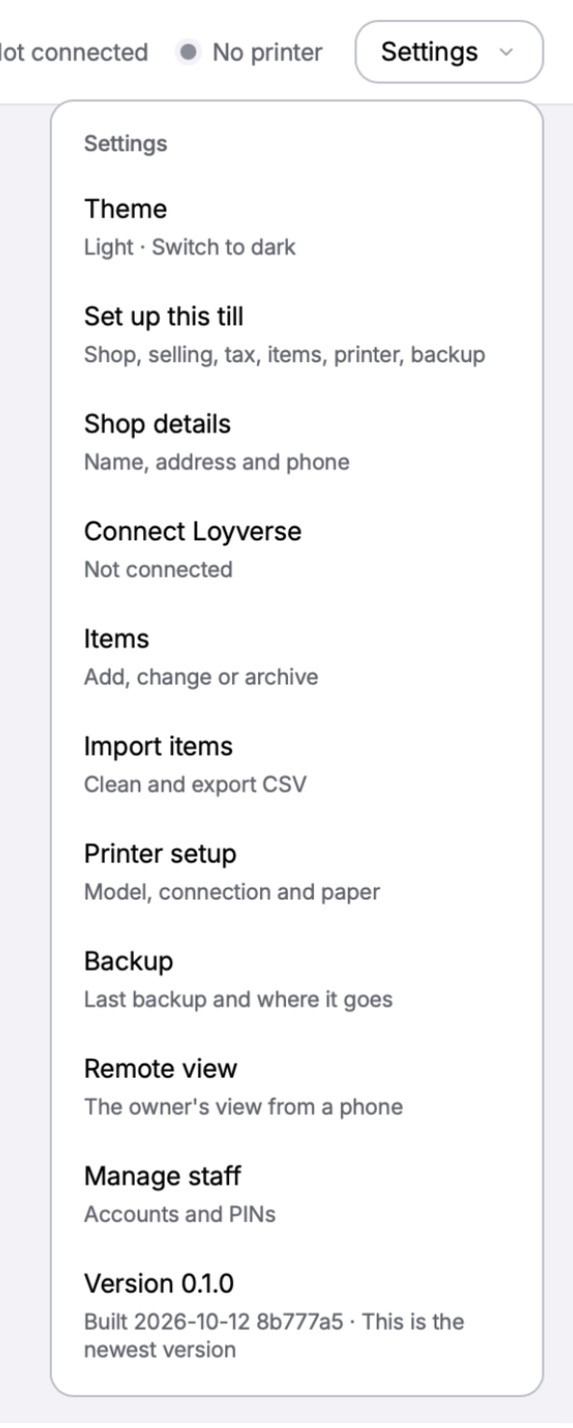
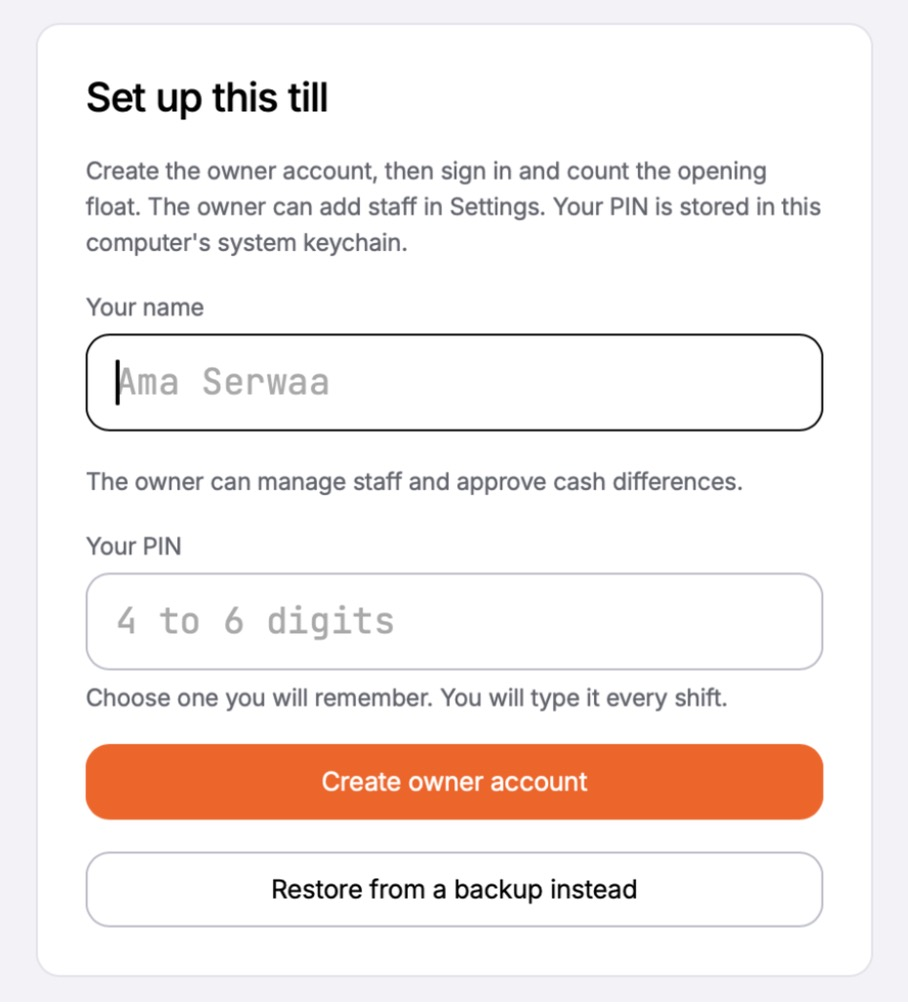
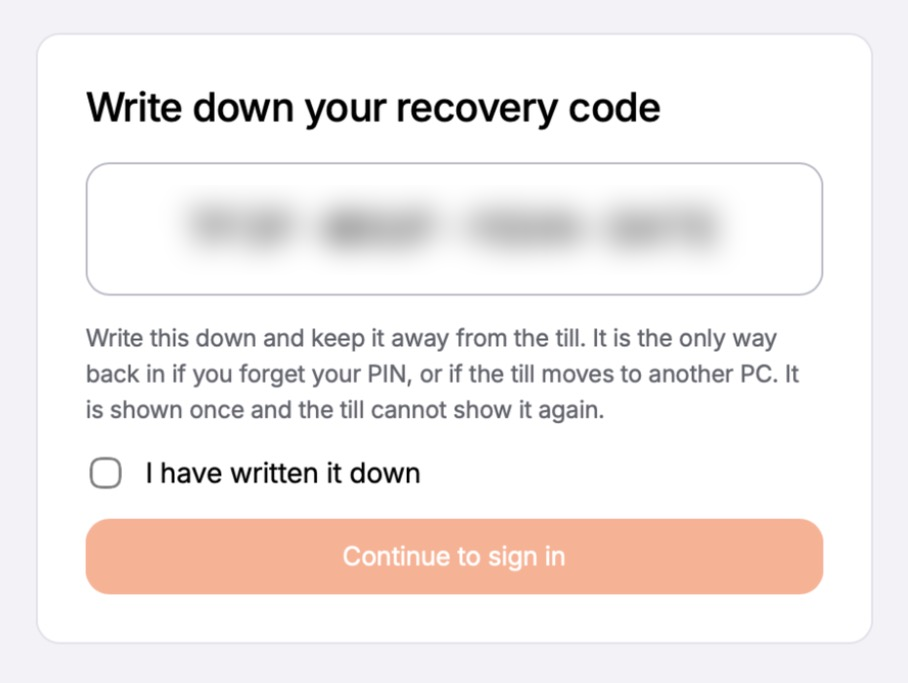
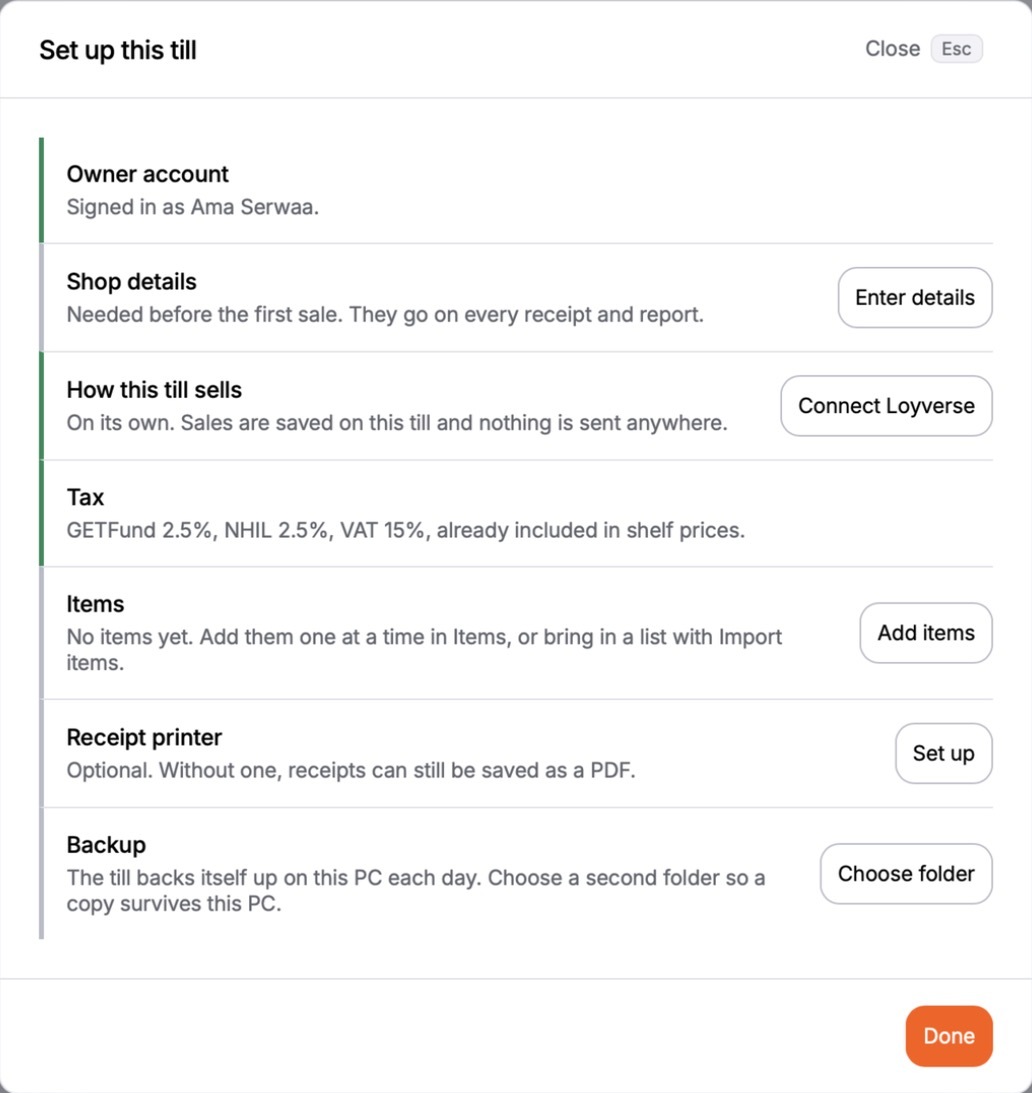
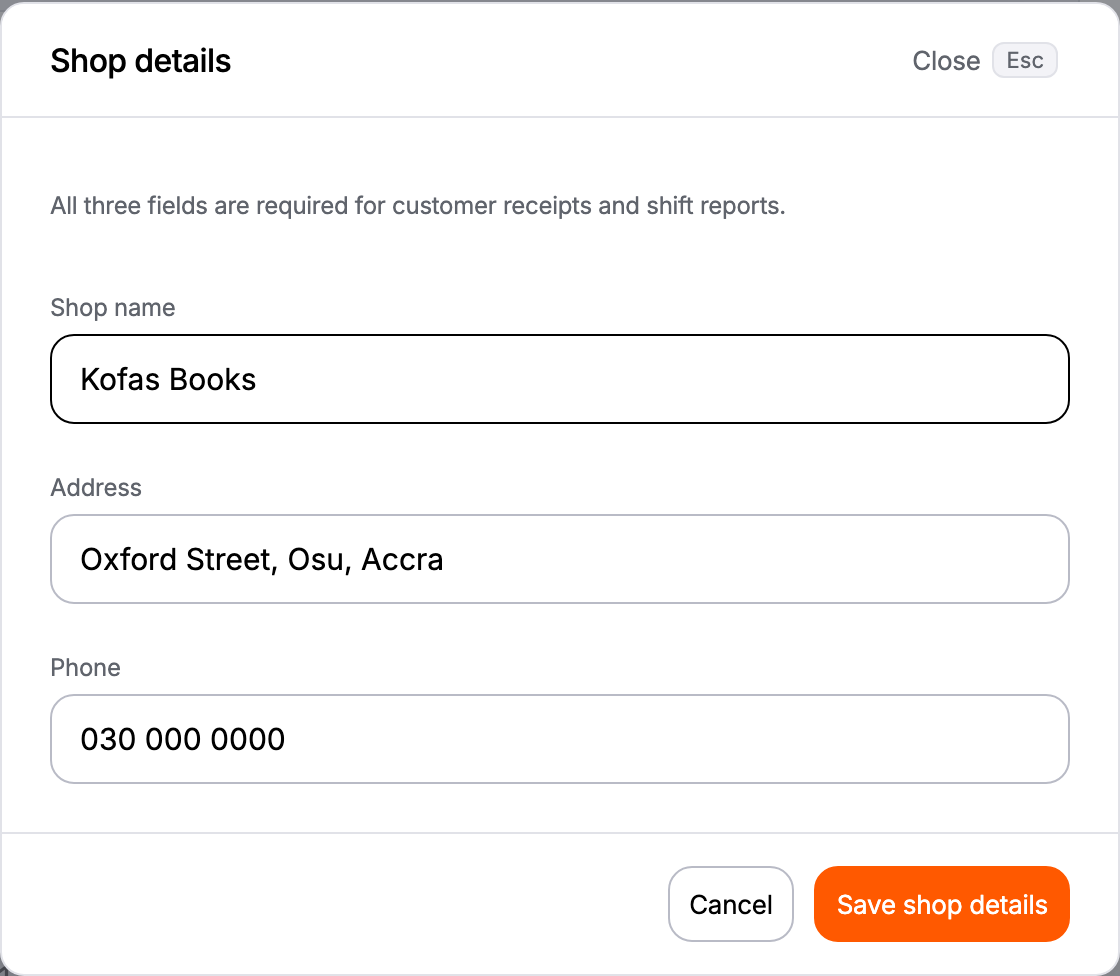
Written 12 October 2026, before the first shop. Three steps here have not yet been run on a real PC: printing on the TM-T20III over USB, the reset tool, and a MoMo sale on the fixed build. Run them once at the office before the first visit. The pictures of the first screen, the recovery code, the set-up page, backup, remote view, staff and the Settings menu are of the real app on a test till. The rest are of the app's practice build with its sample shop, Kofas Books.
Never
- Never uninstall Storefront POS. Uninstalling wipes the till. To update, run the new installer over the old one.
- Never ask for, watch or write down anyone's PIN, the owner's recovery code or the owner's remote view password. Look away while they type.
- Never run the reset tool on a till that has taken a real sale.
- Never put practice sales on a shop's till. Every sale on it is a real record for good.
At the office, before you leave
Collect from the shop
On site, in this order
1The PC
2The printer
3The owner
Open Storefront POS. The owner, not you, types Your name and Your PIN (4 to 6 digits) and selects Create owner account.
4Set up this till
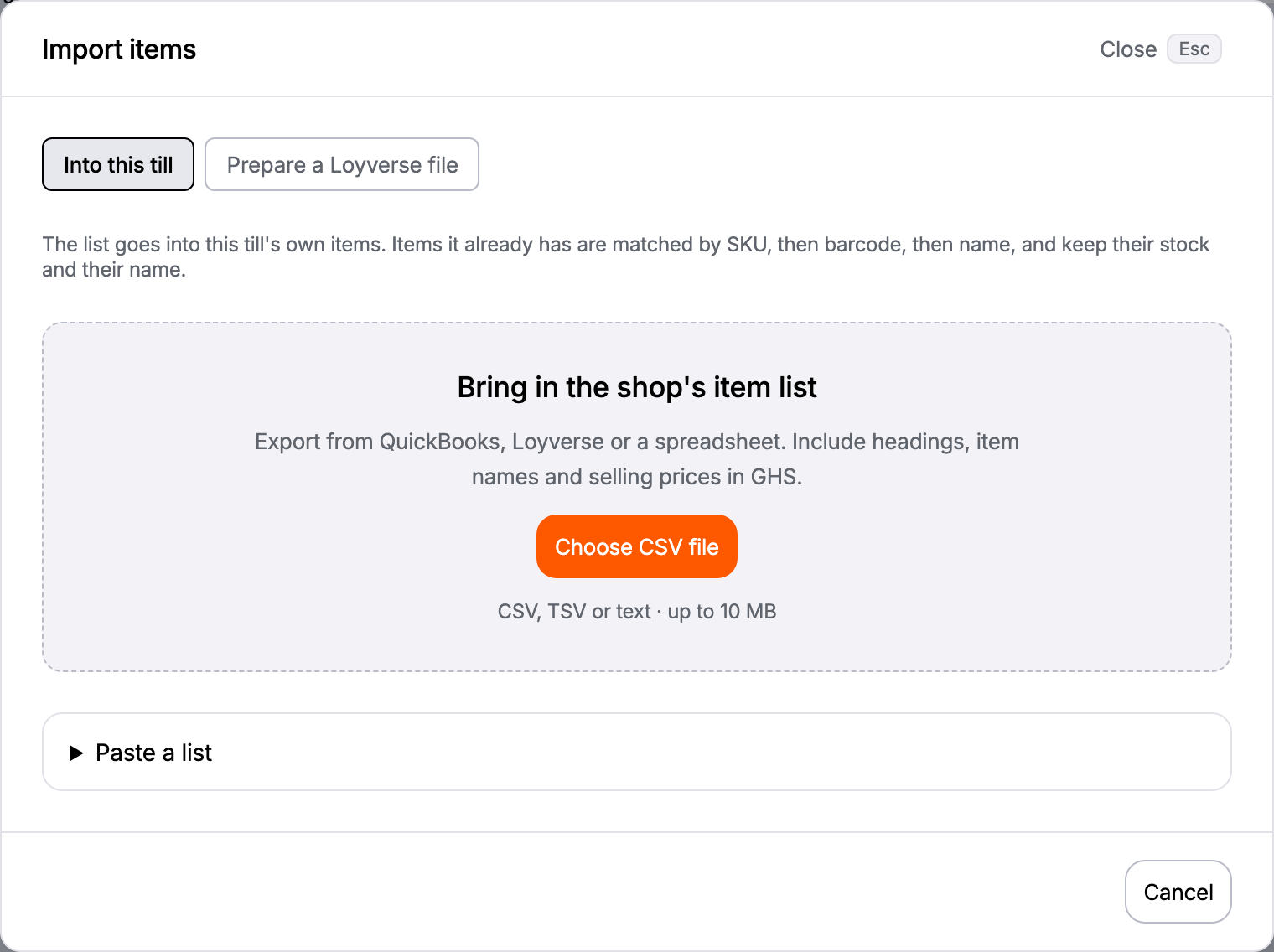
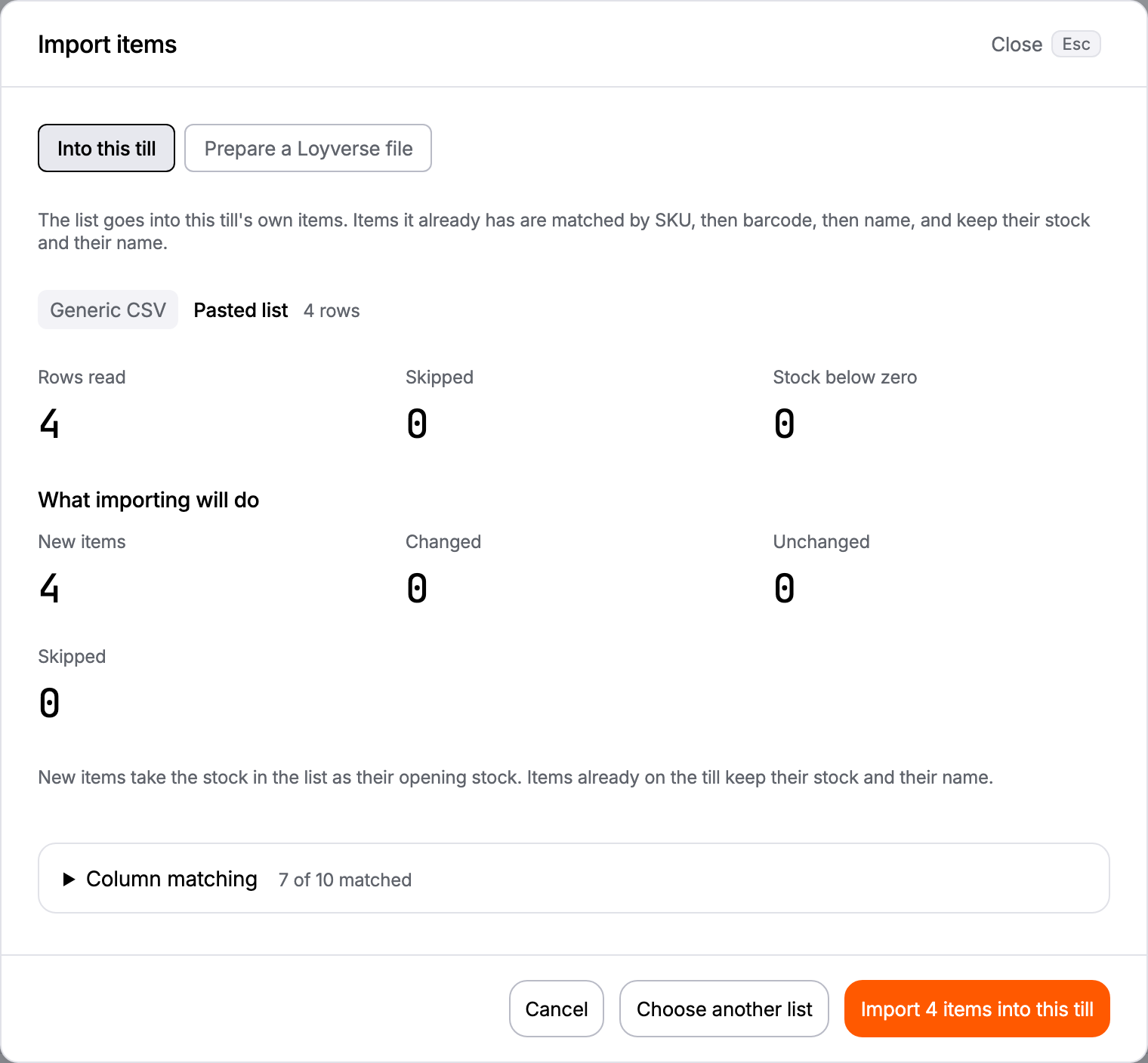
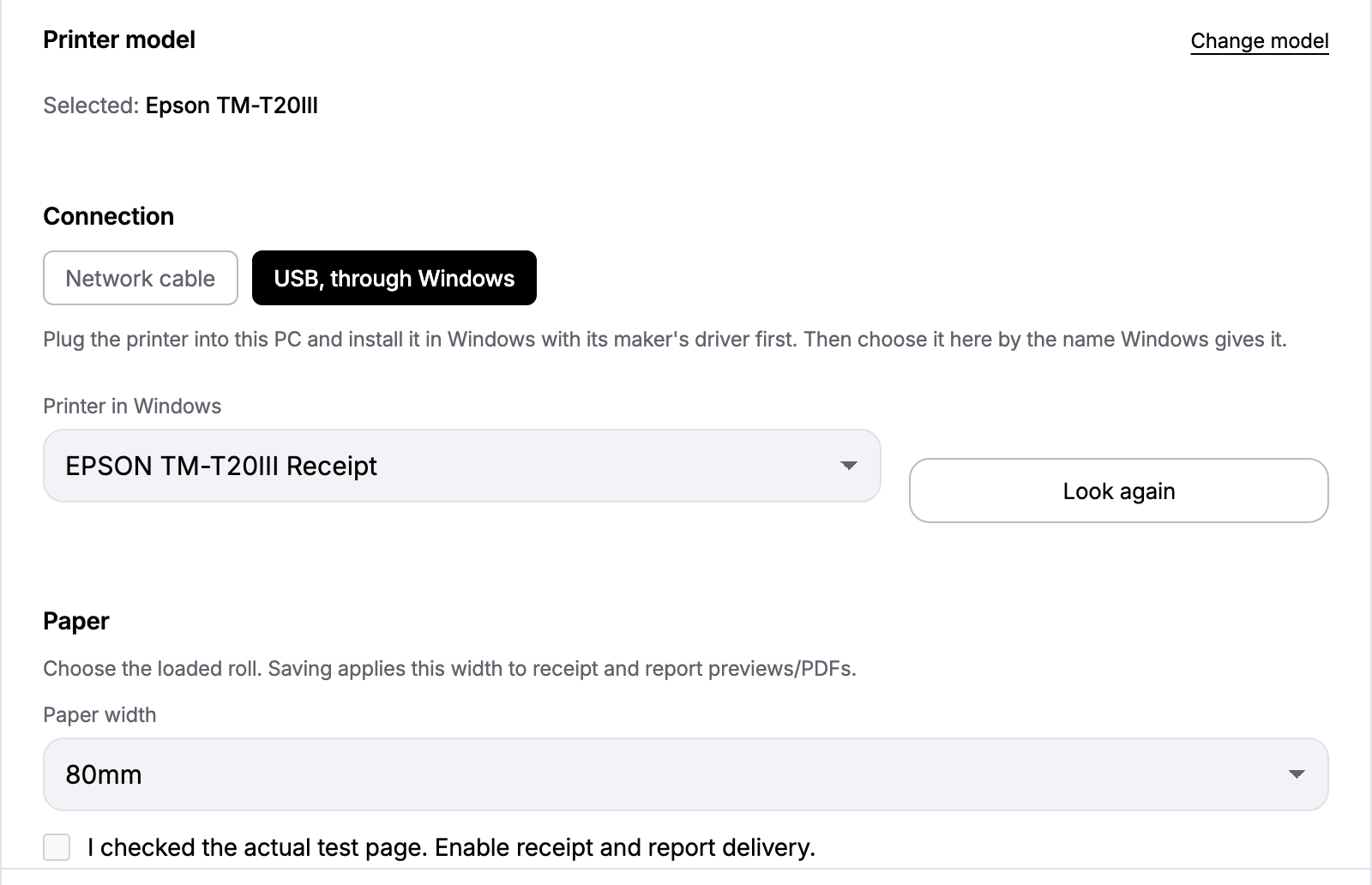
The page lists what the till needs. Do each row until its edge is green.
Items
Receipt printer
Backup
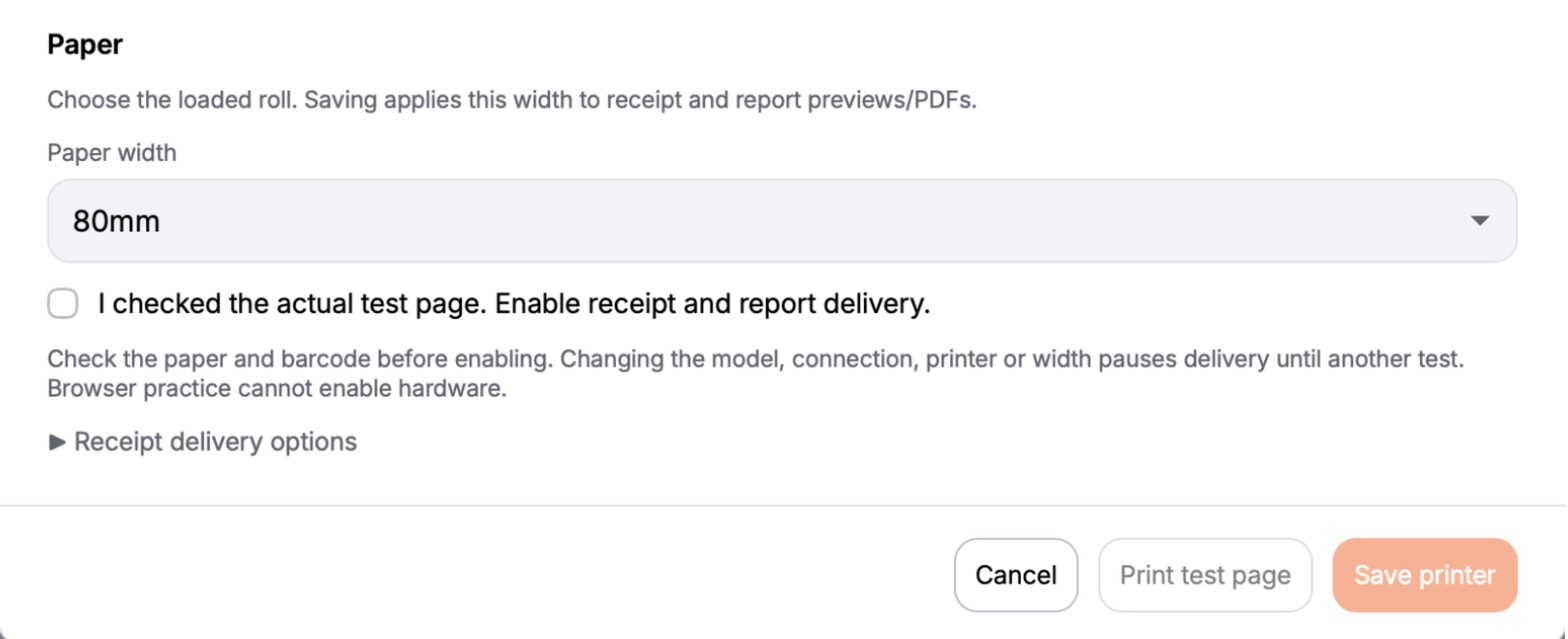
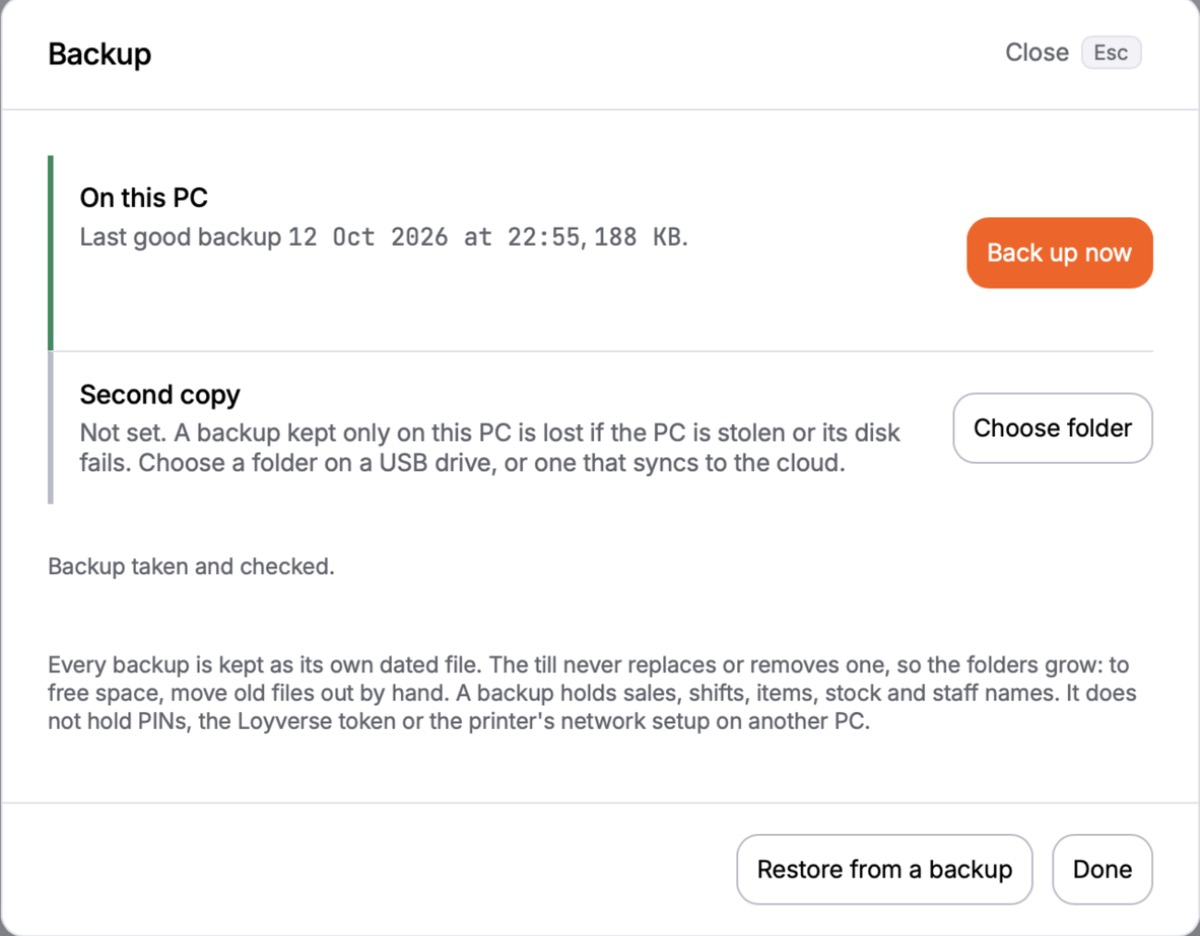
5Staff
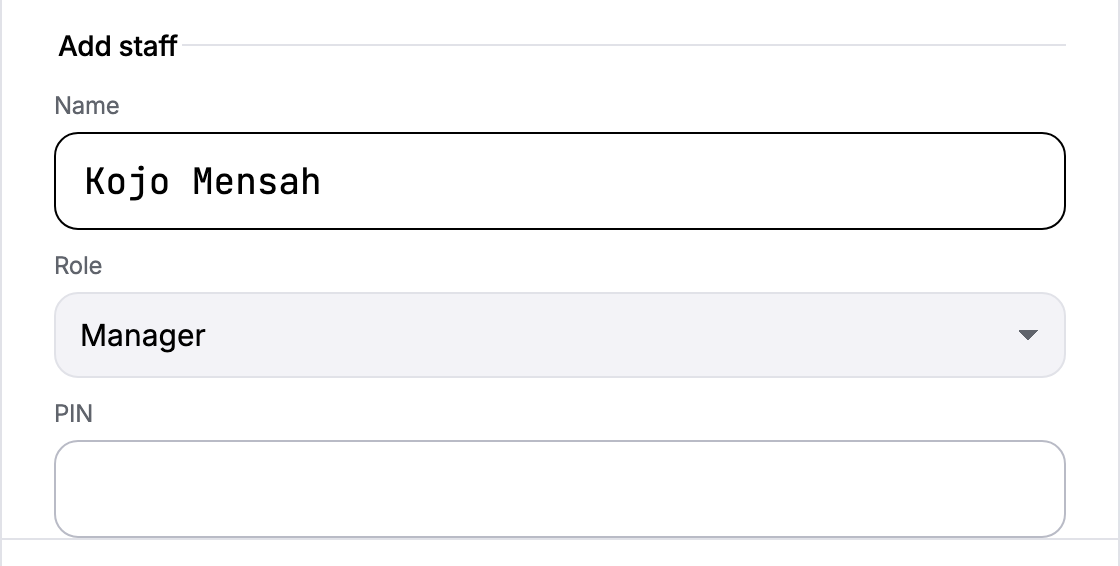
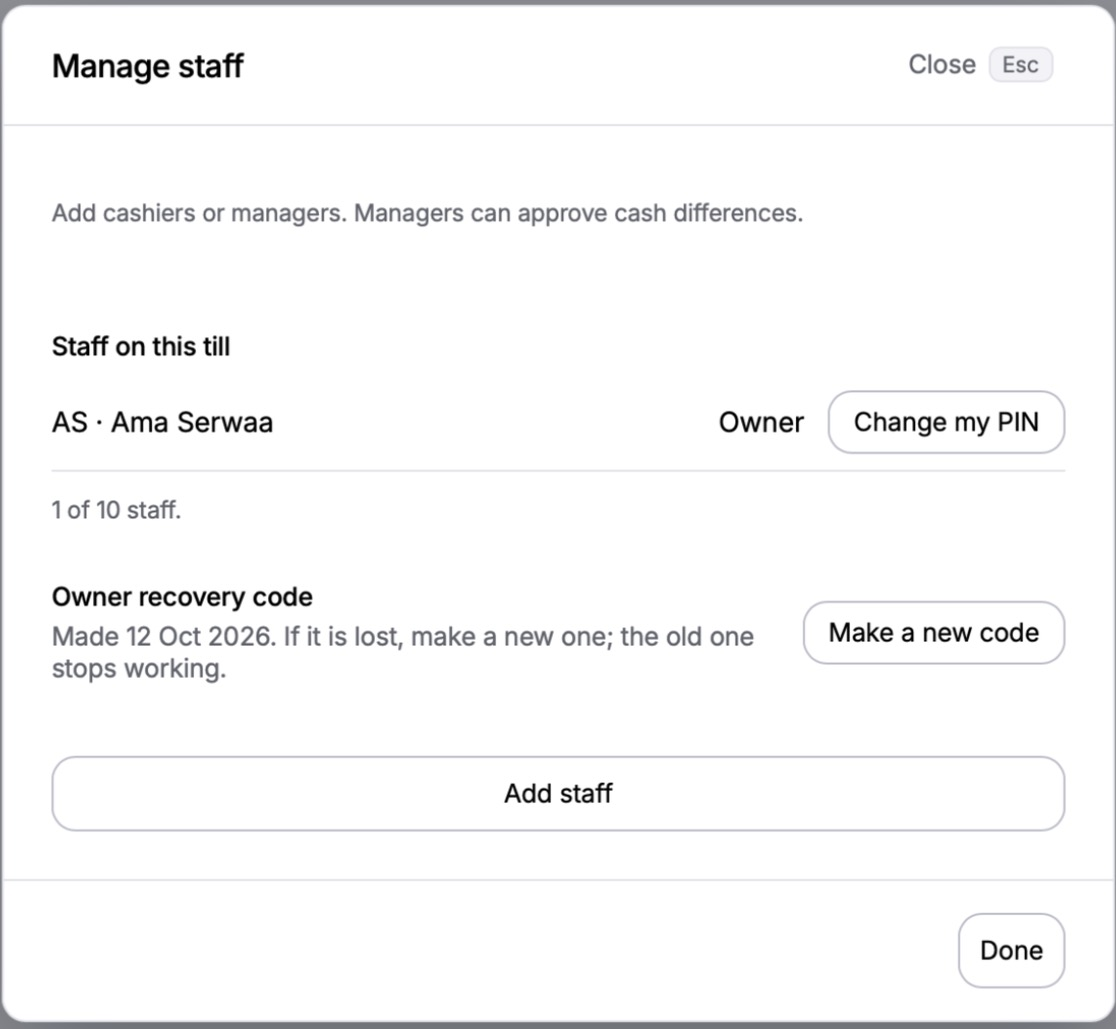
6Remote view
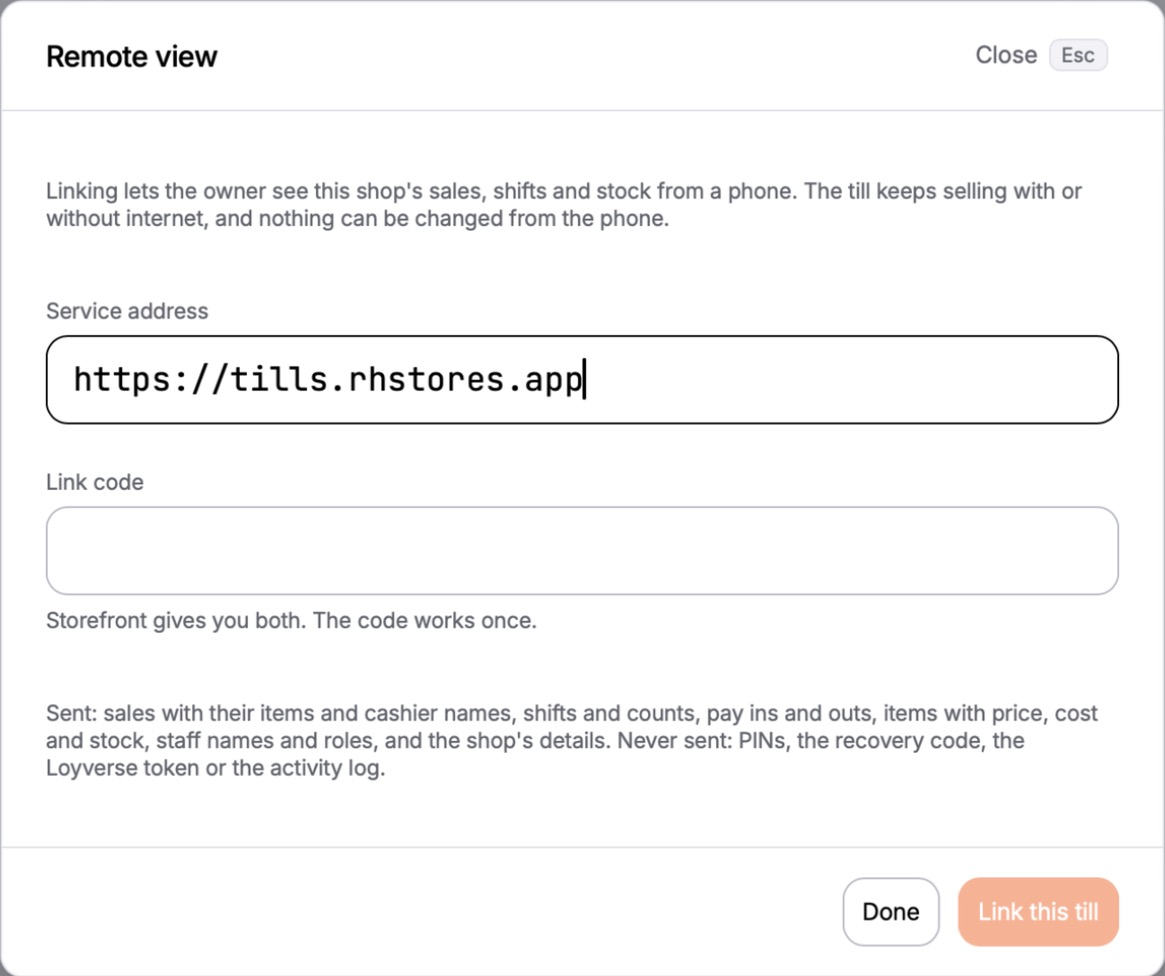
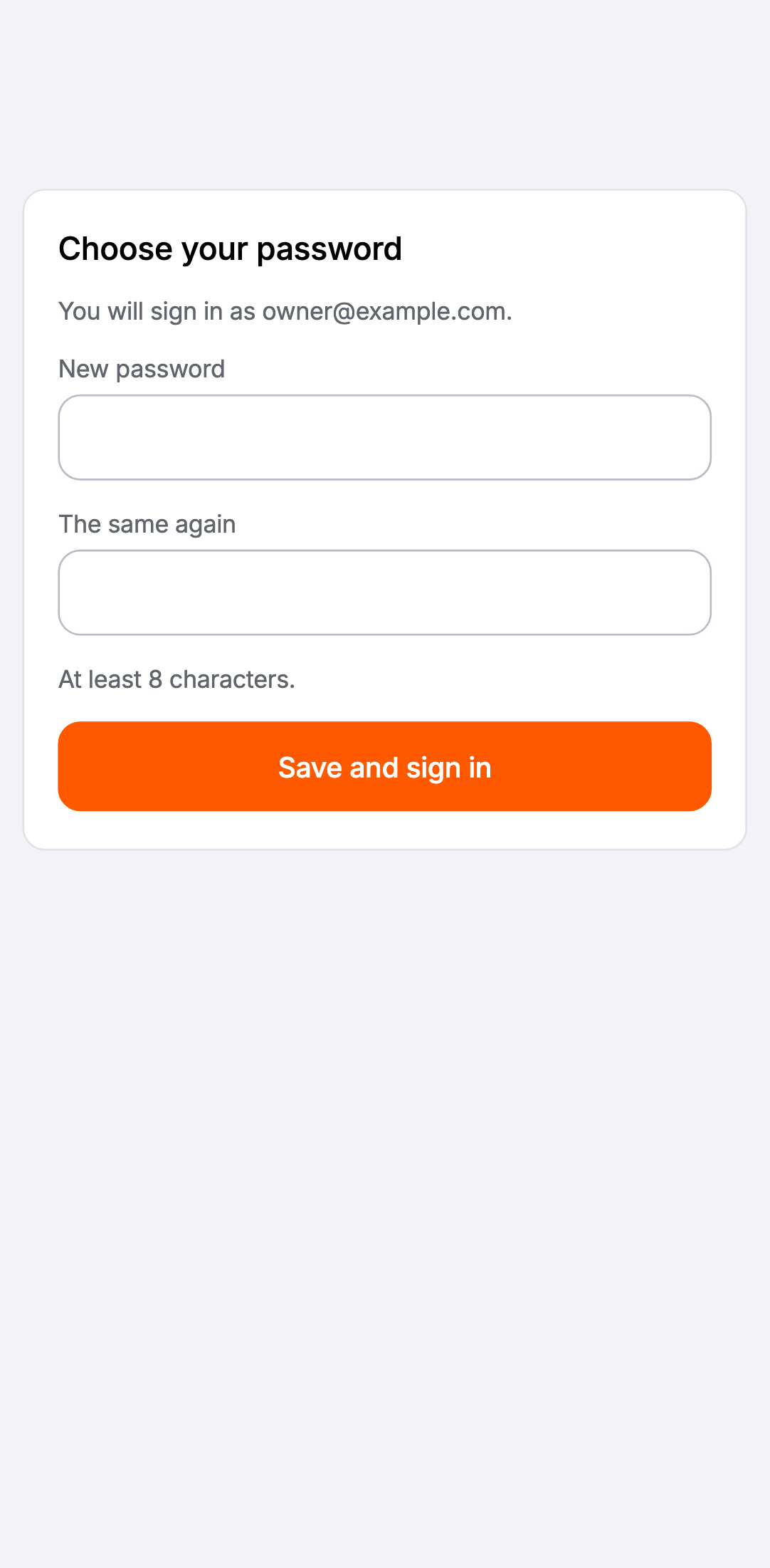
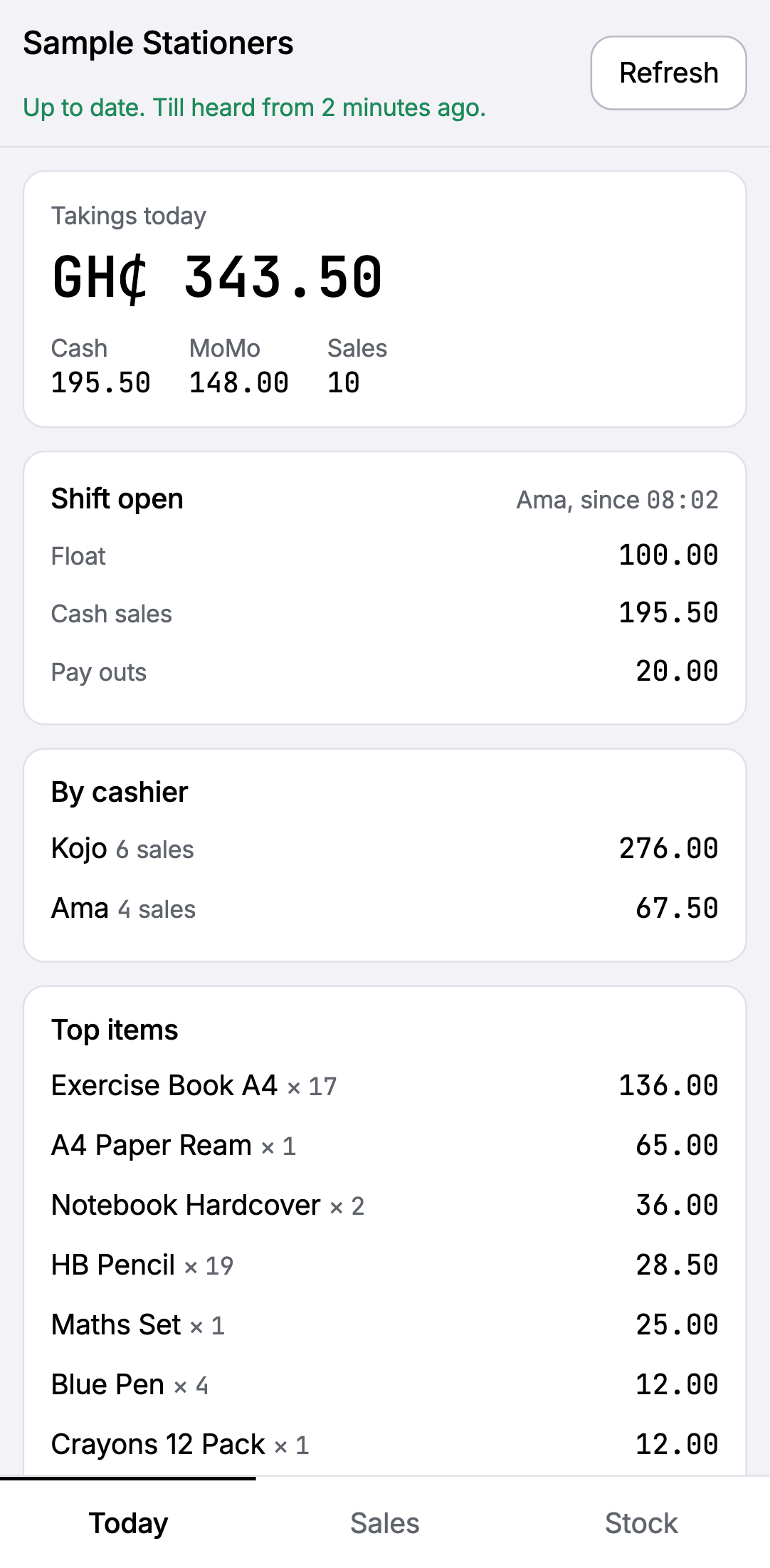
Phone Storefront's office with the shop name exactly as typed in step 4, and the owner's email. The office gives you a link code and sends the owner a sign-in link.
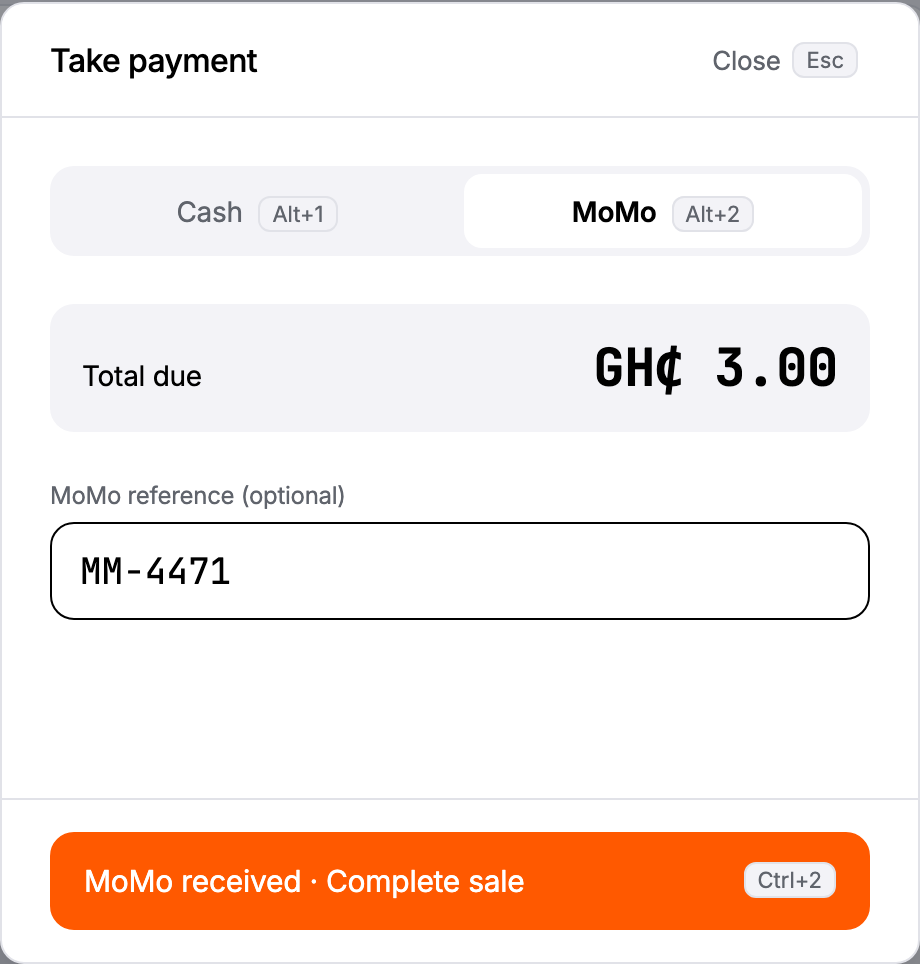
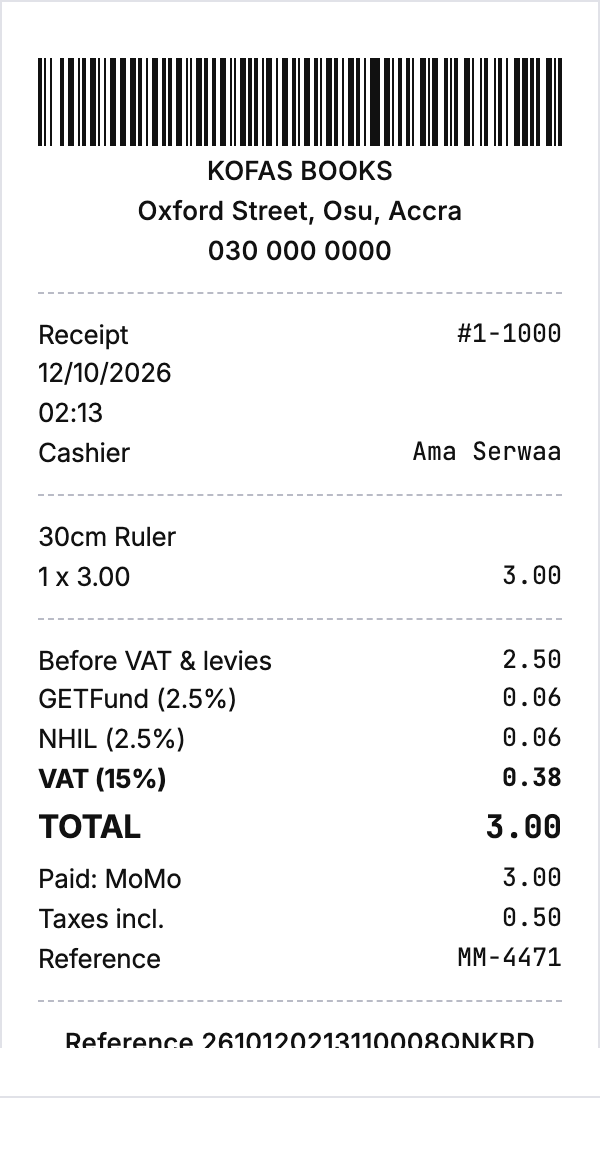
7Prove it with real sales
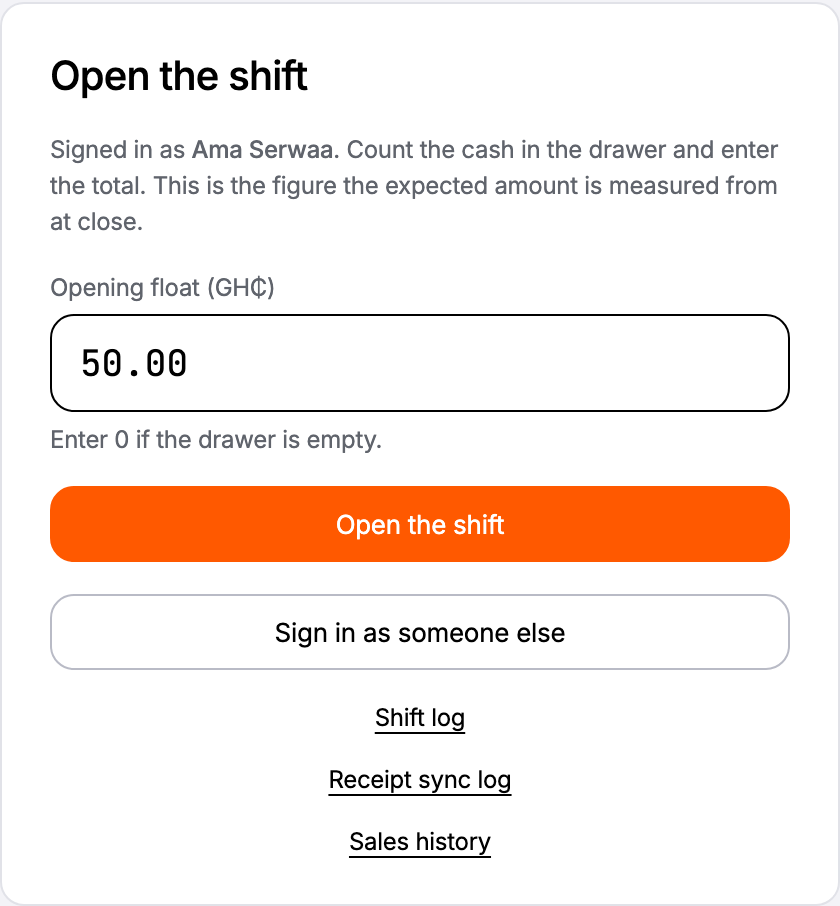
These stay on the record, so take real money for them.

8Hand over
If something goes wrong
- The printer is not in the list.
- Its Windows driver is not installed, or it is unplugged. Fix that in Windows, then Look again.
- The link code is refused.
- A code works once and for 72 hours. Ask the office for a new one.
- Windows warns about the installer ("Windows protected your PC").
- Select More info, then Run anyway. Only for a file that came from Storefront's office.
- Something was set up wrongly and no real sale has been taken.
- Run the reset tool and start again from step 3. Tell the office, so the shop on the remote view is removed too.
- Anything else.
- Stop, leave the till as it is, and phone the office.